Scheduling
Overview
Set weekly schedules for shutdown and startup times for Instances and VM’s, apply Power Schedules to Instances pre or post-provisioning, apply Power Schedule policies on Group or Clouds, or use Guidance to automatically recommend and apply optimized Power Schedules.
Power Schedules
Create Power Schedule
Navigate to
Operations -> SchedulingSelect + ADD
Configure the following options:
- NAME
Name of the Power Schedule
- DESCRIPTION
Description for the Power Schedule
- TIME ZONE
Time Zone the Power Schedule times correlate to.
- TYPE
- Power On
Power Up and then Down at scheduled times
- Power off
Power Down then Up at scheduled times
- Enabled
Check for Power Schedule to be Active. Uncheck to disable Power Schedule.
- DAYS
Slide the start and end time controls for each day to configure each days Schedule. Green sections indicate Power on, red sections indicate Power Off. Time indicated applies to selected Time Zone.
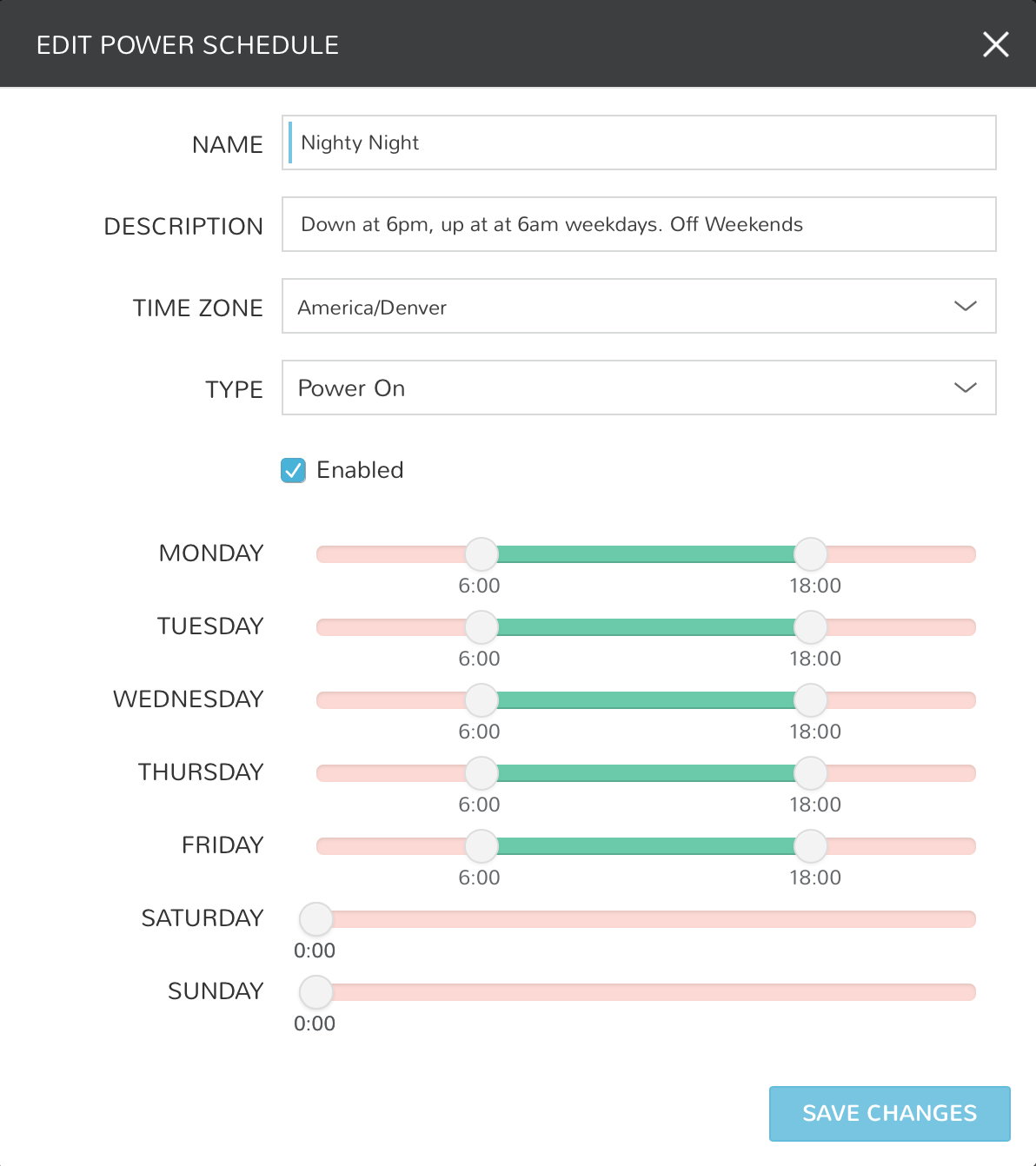
Select SAVE CHANGES
Tip
To view the Instances a power schedule is currently set on, select the name of a Power Schedule to go to the Power Schedule Detail Page.
Add Power Schedule to Instance
- Navigate to
Provisioning -> Instances - Select an Instance
- Select EDIT
- In the POWER SCHEDULE dropdown, select a Power Schedule.
- Select SAVE CHANGES
Add Power Schedule to Virtual Machine
- Navigate to
Infrastructure -> Hosts -> Virtual Machines - Select a Virtual Machine
- Select EDIT
- Expand the Advanced Options section
- In the POWER SCHEDULE dropdown, select a Power Schedule.
- Select SAVE CHANGES
Add Power Schedule to a Cloud
Note
Power Schedule Policies apply to Instances created in the Cloud after the Policy is enabled.
Navigate to
Infrastructure -> CloudsSelect a Cloud by clicking on the name of the Cloud to go to the Cloud Detail page.
Select the
POLICIEStab in the Cloud Detail page.Select + ADD
Select TYPE Power Schedule
Configure the Power Schedule Policy:
- DESCRIPTION
Add details about your Policy for reference in the Policies tab.
- Enabled
Policies can be edited and disabled or enabled at any time. Disabling a Power Schedule Policy will prevent the Power Schedule from running on the Clouds Instances until re-enabled.
- ENFORCEMENT TYPE
- User Configurable: Power Schedule choice is editable by User during provisioning.
- Fixed Schedule: User cannot change Power Schedule setting during provisioning.
- POWER SCHEDULE
Select Power Schedule to use in the Policy. Power schedule can be added in
Operations -> Scheduling- Permissions- TENANTS
Leave blank to apply to all Tenants, or search for and select Tenants to enforce the Policy on specific Tenants.
Select SAVE CHANGES
Add Power Schedule to a Group
Note
Power Schedule Policies apply to Instances created or moved into the Group after the Policy is enabled.
Navigate to
Infrastructure -> GroupsSelect a Group by clicking on the name of the Group to go to the Group Detail page.
Select the
POLICIEStab in the Group Detail page.Select + ADD
Select TYPE Power Schedule
Configure the Power Schedule Policy:
- DESCRIPTION
Add details about your Policy for reference in the Policies tab.
- Enabled
Policies can be edited and disabled or enabled at any time. Disabling a Power Schedule Policy will prevent the Power Schedule from running on the Groups Instances until re-enabled.
- ENFORCEMENT TYPE
- User Configurable: Power Schedule choice is editable by User during provisioning.
- Fixed Schedule: User cannot change Power Schedule setting during provisioning.
- POWER SCHEDULE
Select Power Schedule to use in the Policy. Power schedule can be added in
Operations -> Scheduling- Permissions- TENANTS
Leave blank to apply to all Tenants, or search for and select Tenants to enforce the Policy on specific Tenants.