Clouds
Overview
Clouds are integrations or connections to public, private, hybrid clouds, or bare metal servers. Clouds can belong to many groups and contain many hosts. The clouds view includes clouds status, statistics, tenant assignment, and provides the option to add, edit, delete new clouds. Conduit supports most Public Clouds and Private Clouds.
Supported Cloud Types
- Alibaba Cloud
- Amazon
- Azure (Public)
- Azure Stack (Private)
- Bluemix
- Bluemix Platform
- Cloud Foundry
- Dell (Cloud type for PXE and manually added Dell EMC Hosts)
- DigitalOcean
- Google Cloud
- HPE (Cloud type for PXE and manually added HPE Hosts)
- HPE OneView
- Huawei
- Hyper-V
- Kubernetes
- MacStadium
- Metacloud
- Conduit (Generic Cloud type for PXE and manually added Hosts)
- Nutanix
- Open Telekom Cloud
- OpenStack
- Oracle Public Cloud
- Oracle VM
- Platform 9
- SCVMM
- SoftLayer
- Supermicro (Cloud type for PXE and manually added Supermicro Hosts)
- UCS
- UpCloud
- VMWare ESXi
- VMware Fusion
- VMware vCenter
- VMware vCloud Air
- VMware vCloud Director
- VirtualBox
- Virtustream
- XenServer
Information on each cloud type can be found in the Integration Guides section.
Creating Clouds
Clouds can be added from Infrastructure -> Clouds or in Infrastructure -> Groups -> (select Group) -> Clouds. Individual Guides for adding specific Cloud Types can be found in the Integration Guides section.
Cloud Detail View
The Cloud Detail view shows metrics on health, sync status, current month costs, average monthly costs, resource utilization statistics, and resource counts for Container Hosts, Hypervisors, Bare Metal, Virtual Machines, and Unmanaged resources.
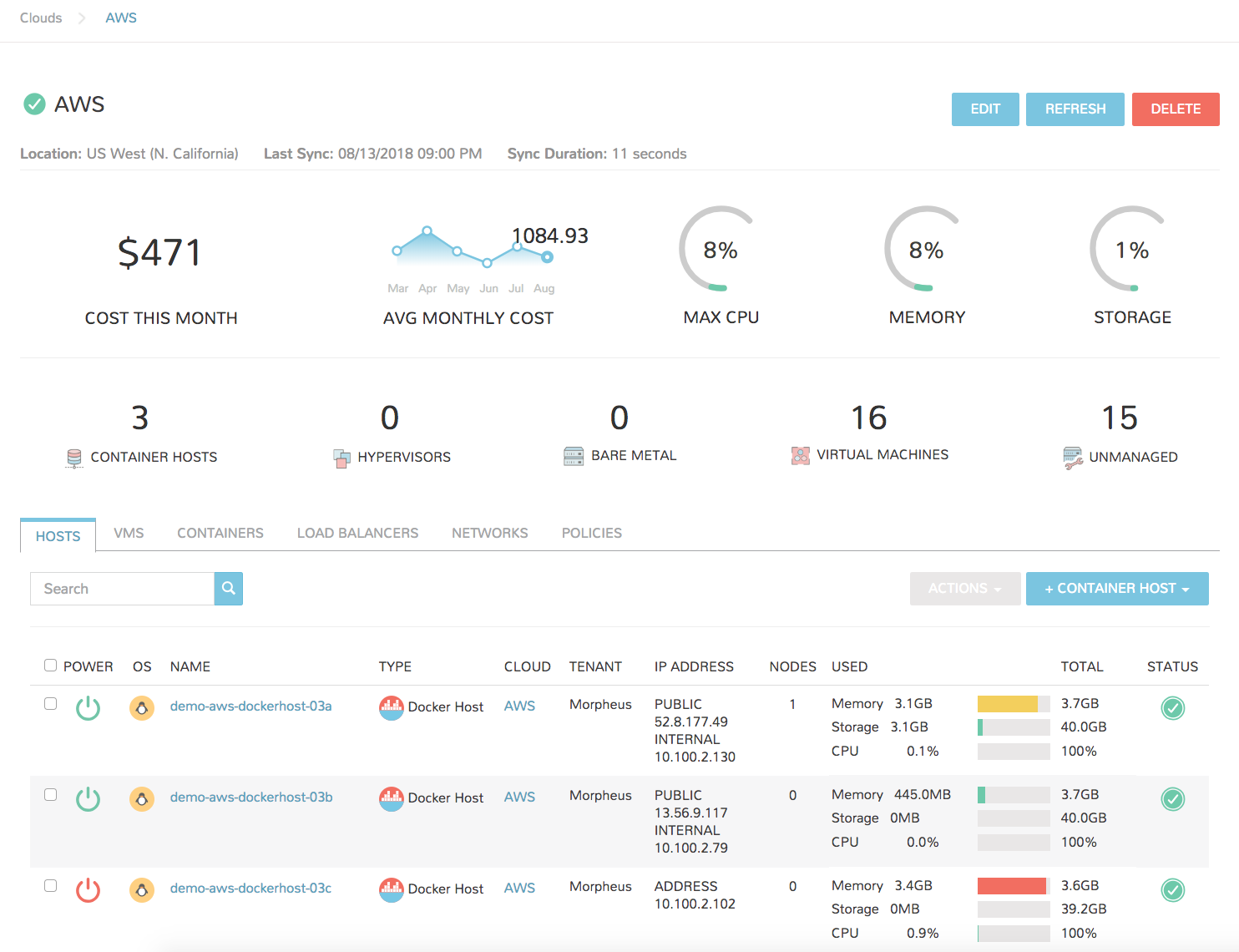
To view the Cloud List View, select the name of a Cloud to display the clouds Detail View.
- EDIT
- Edit the setup configuration of the Cloud.
- REFRESH
- Force a sync with the Cloud. Last sync date, time and duration is shown under the Cloud name.
- DELETE
- Delete the Cloud from Conduit
Important
All Instances and managed Hosts and VM’s associated with the Cloud must be removed prior to deleting a cloud.
Cloud Detail Tabs
Note
Not all tabs are available for all Cloud Types.
- Hosts
- The hosts tab panel displays available hosts in the cloud and displays power, os, name, type, cloud, ip address, nodes, disc space, memory, and status. You can add a container host from this by clicking the Container Hosts button, add a hypervisor host by clicking the HyperVisor button, or perform actions actions by click the Actions button.
- Virtual Machine
- Displays an Inventory of Existing Instances in your cloud configuration and provides details such as power, os, name, type, cloud, ip address, nodes, disc space, memory, and status.
- Bare Metal
- Setup PXE Boot in the Boot section to add bare metal servers. Once setup you can view information such as power, os, name, type, cloud, ip address, nodes, disc space, memory, and status.
- Security Groups
- The Security Groups tab panel displays a list of existing Security groups in the cloud. You can add a security group to this cloud by clicking the Edit Security Groups button.
- Load Balancers
- The load balancers tab panel displays available load balancers in the cloud and displays the name, description, type, cloud and host. You can add a load balancer from this tab by clicking the Add Load Balancer button.
- Networks
- Displays Networks synced or added to the Cloud.
- DataStores
- Displays Datastores synced or added to the Cloud.
- Resource Pools
- Displays Resource Pools synced from the Cloud.
- Policies
- Manages Policies enforced on the Cloud.
- + Container Host
- Provisions a Docker host into the Cloud, or adds an existing Docker Host (manual) to the Cloud. KVM hosts are also available for Conduit and Bare Metal cloud types.
- + Hypervisor
- Add an existing Hypervisor to the Cloud. Not available for all Cloud types.
Deleting Clouds
To delete a cloud:
- Select the Infrastructure link in the navigation bar.
- Select the Clouds link in the sub navigation bar.
- Click the Delete icon of the cloud to delete.
Important
All Instances and managed Hosts and VM’s must be removed prior to deleting a cloud. To remove Instances, Hosts and VM’s from Conduit without deleting them in the actual Cloud, select Delete on the Host or VM, unselect “Remove Infrastructure” and select “Remove Associated Instances” if Instance are associated with the Hosts or VMs.