Hosts
Overview
The Infrastructure -> Hosts section provides a universal stage for viewing and managing Hosts and Virtual Machines from all of your Clouds.
In this section you can:
View & Manage all Hosts, Virtual Machines & Bare Metal
Provision Docker & KVM Hosts
Convert existing hosts to Docker & KVM Hosts
Add Hypervisors
Convert Hosts, Virtual Machines and Bare Metal to Managed
Important
When local firewall management is enabled, Conduit will automatically set an IP table rule to allow incoming connections on tcp port 22 from the Conduit Appliance.
Hosts
Hosts in Conduit are Hypervisors and Docker Hosts that your VM’s and Container are hosted on, such as ESXi, Hyper-V and Docker Hosts. These Hosts are populated from integrated clouds, hosts provisioned from Conduit, or manually added Hosts.
Virtual Machines
The Virtual Machines tab lists all Managed and Unmanaged VM’s across Conduit . Managed VM’s are either provisioned by Conduit, or inventoried VM’s that were converted to managed. Unmanaged VM’s are from Cloud integrations with “Inventory Existing Instances” enabled in the Cloud settings.
Bare Metal
Bare Metal hosts are from PXE Boot or manually added in this section. Bare Metal hosts that are also Hypervisors will be listed in both the Bare Metal and Hypervisor sections.
Docker Hosts
Overview
Conduit can provision Docker Hosts into any cloud, convert existing Hosts to Docker Hosts, or even make itself a Docker Host.
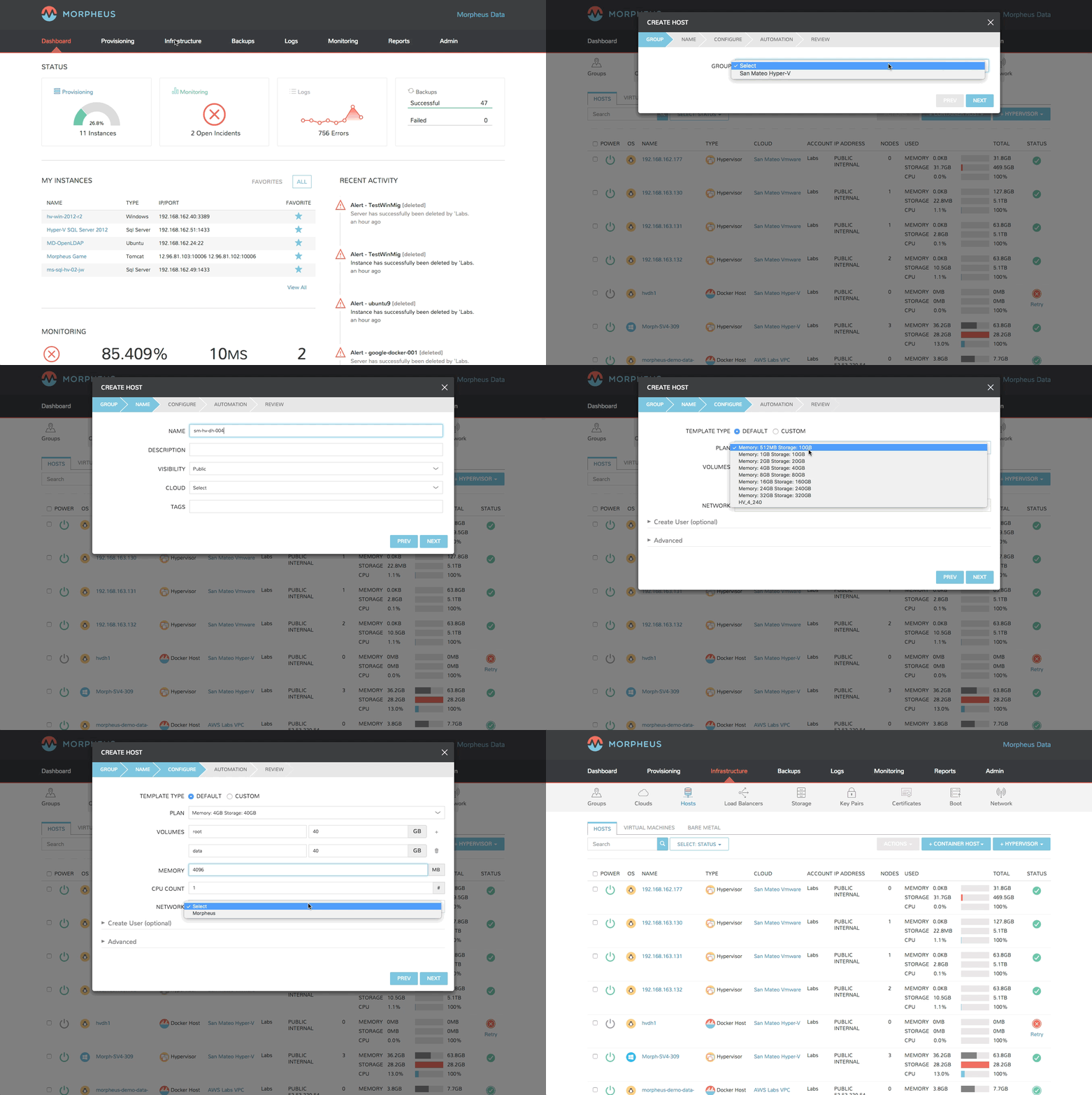
To add a Docker Host to any cloud:
- Navigate to Infrastructure -> Hosts
- Click the +CONTAINER HOST button
- Select a container host type
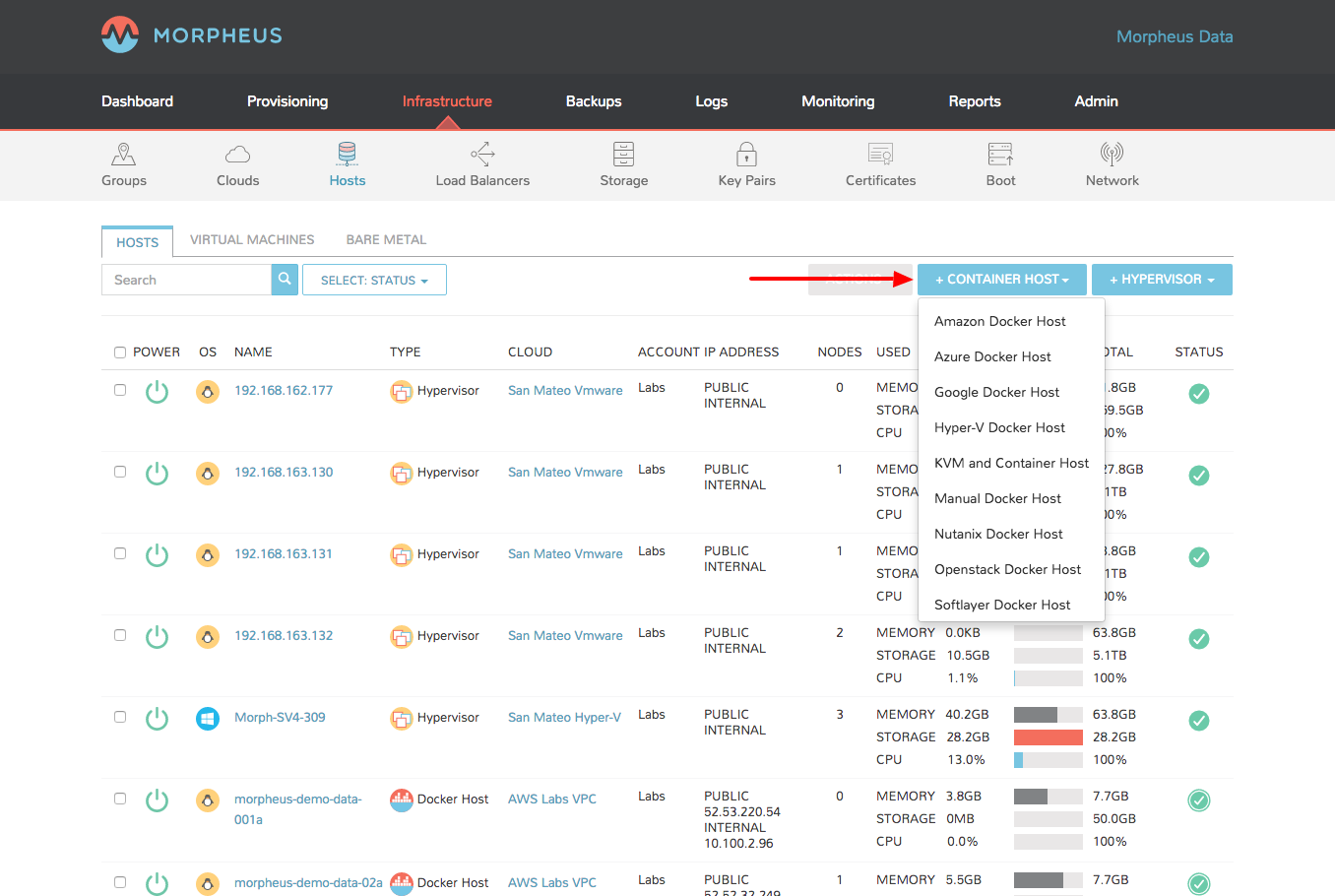
- Select a Group
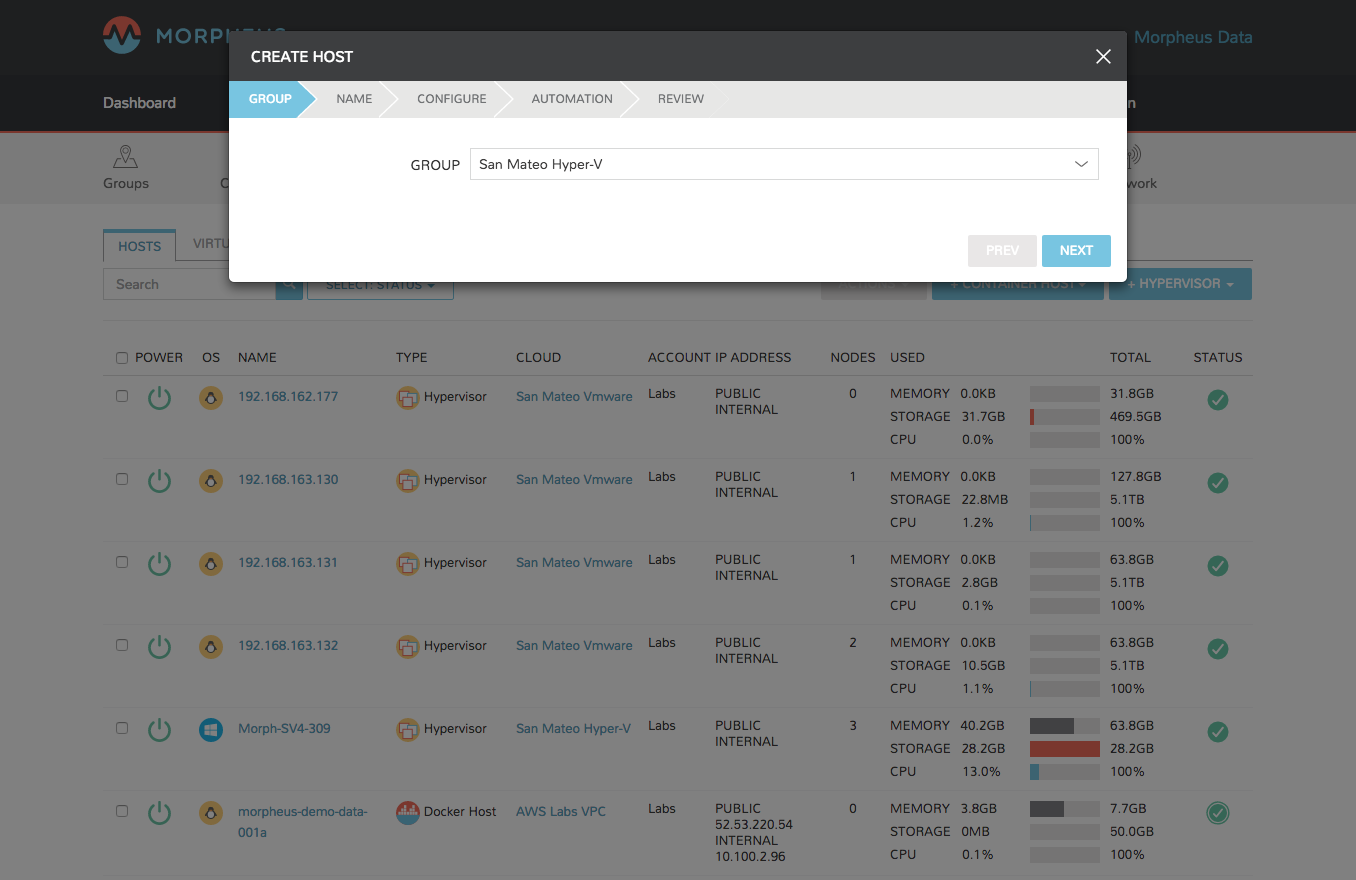
- Enter the following:
- Name
- Description
- Visibility
- Select a Cloud
- Enter tags (optional)
Then click NEXT.
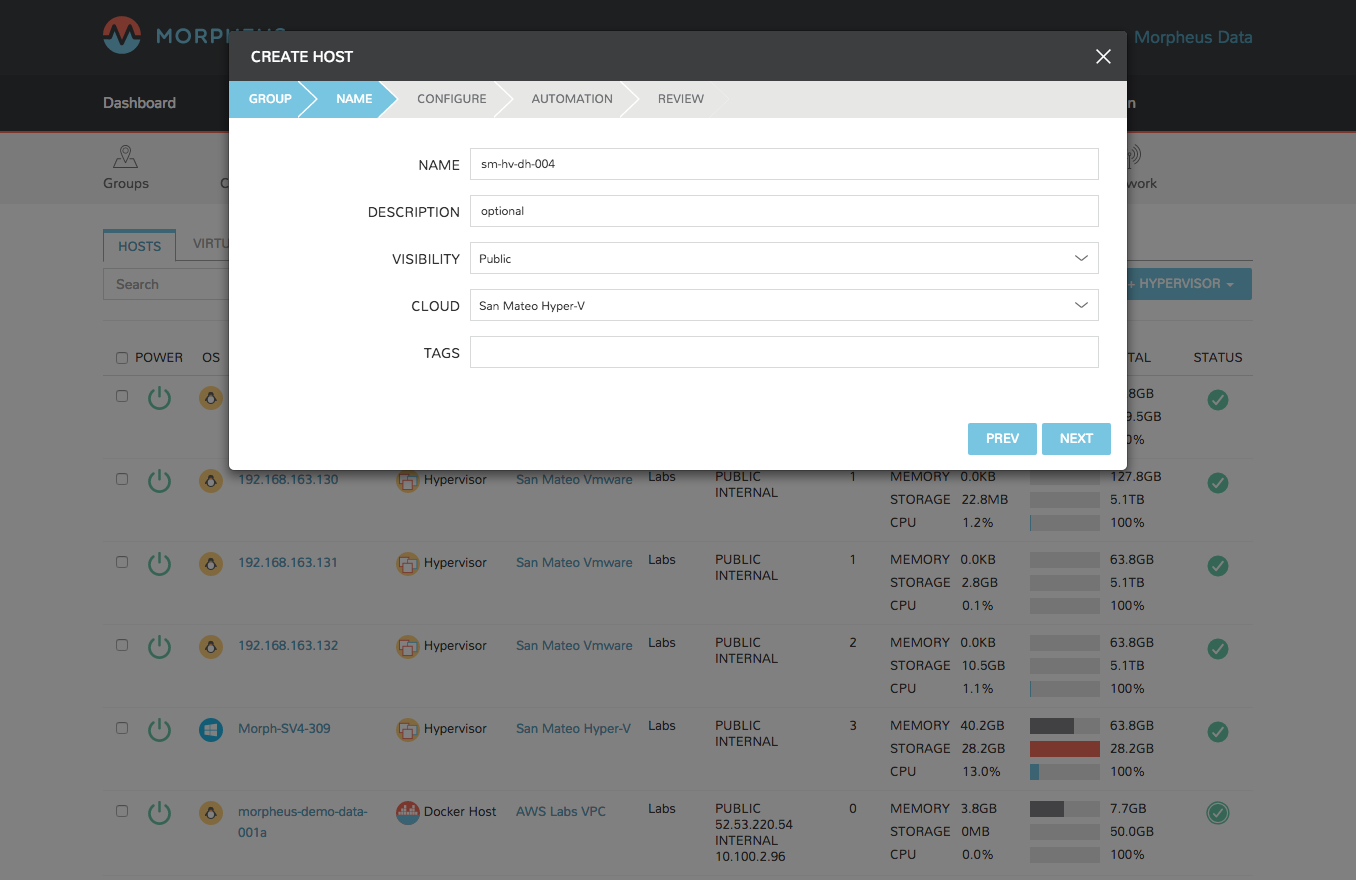
- Configure the host options
- Select a Service Plan (Volume, Memory and CPU count fields may not be shown if selected service plan does not have custom options enabled).
- Add and set size the volumes
- Set memory size
- Set the CPU count
- Select a network
- Optionally configure the following:
- OS username
- OS password
- Domain name
- Hostname (default is the name previously provided for the container host)
Then click the NEXT button

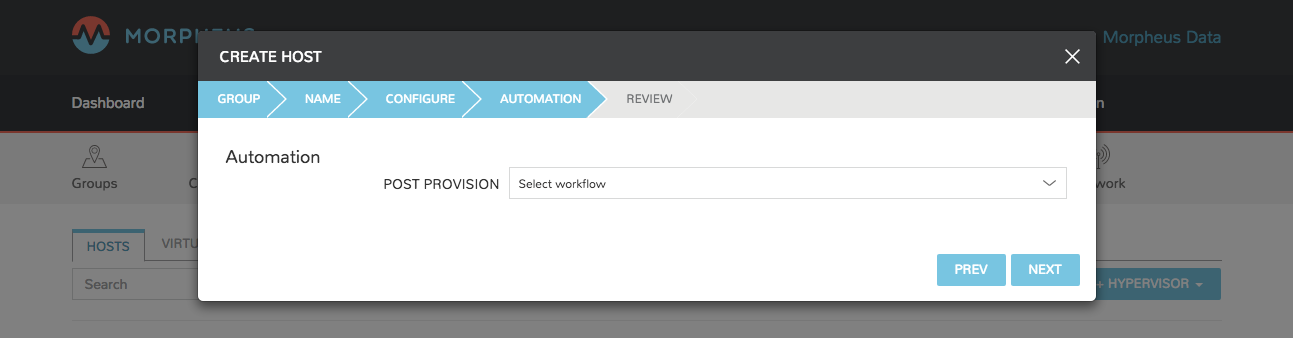
- Optionally add any Automation Workflows and configure for Backups.
- Review and click Complete to save
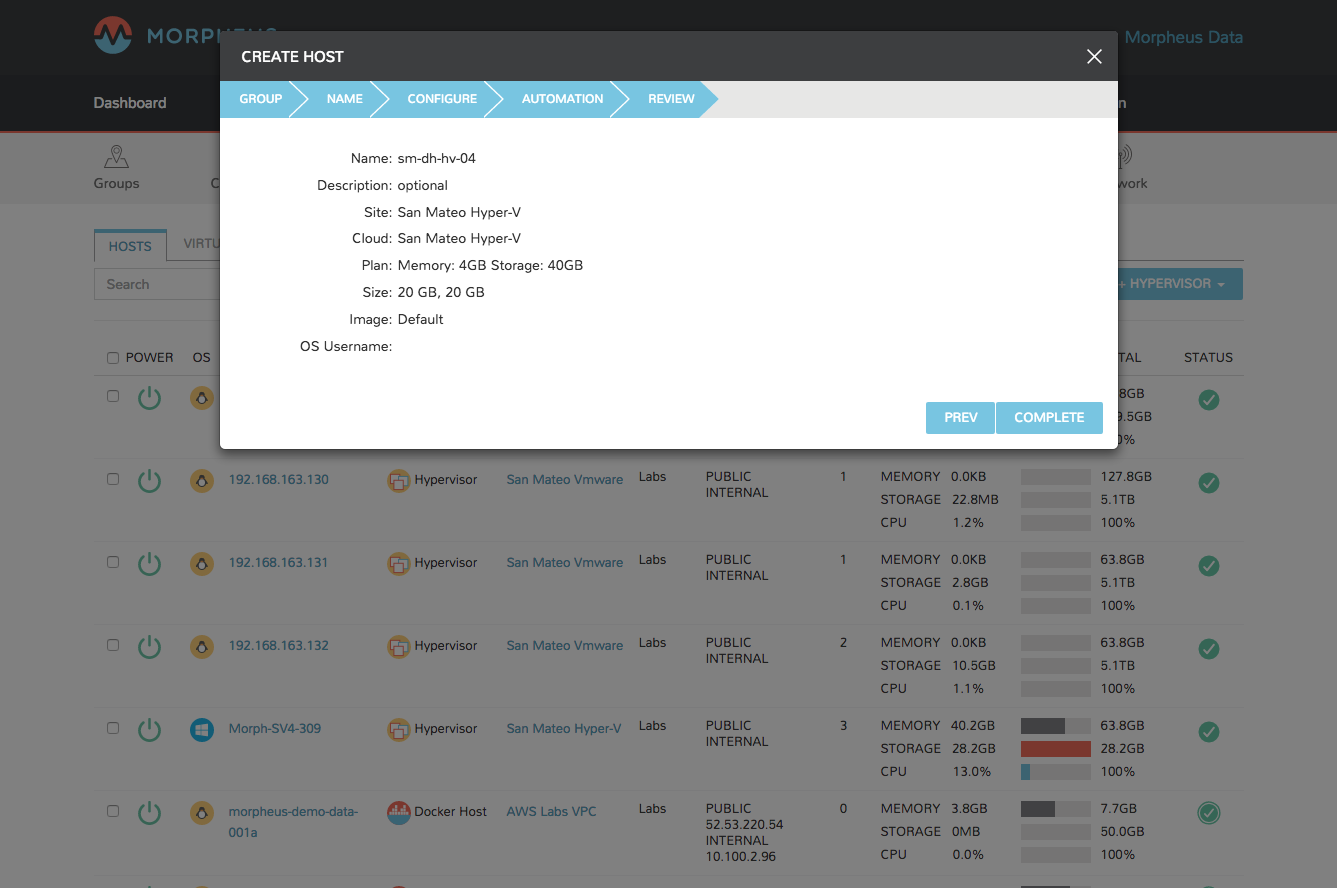
Your new container host will begin provisioning, and soon be running and ready for containers.
Add an existing Docker Host
Conduit can manage and inventory existing/brownfield Docker Hosts by using the Manual Docker Host option.
Note
Adding a Docker Host that was previously managed by another Conduit Appliance will disable management of the host on that Appliance as the Conduit Agent settings will be reconfigured.
Note
Container Mode on the Cloud settings where the Host is being added must be set to Conduit for non-Kubernetes/Swarm hosts.
Navigate to Infrastructure -> Hosts
Select +CONTAINER HOST button
Select Manual Docker Host
In the CREATE HOST Wizard, enter the following:
GROUP
- GROUP
Select the Group this Host will be available for
Select NEXT
NAME
- CLOUD
Select the Cloud the Host will be assigned to
- NAME
Enter name for the Docker Host in Conduit
- DESCRIPTION
Enter optional description for the Docker Host
- VISIBILITY
Select Tenant Visibility
- TAGS
Add optional Conduit tags (these are not meta-data tags)
Select NEXT
CONFIGURE
- SSH HOST
Enter IP or resolvable hostname of the target host
- SSH USER
Enter existing username on the target host
- SSH PASSWORD
Enter password for SSH User
- PUBLIC KEY
For key auth (recommended), copy and add the displayed Public Key to the
authorized_keysfile on the target host.- PLAN
Default Manual
- LVM ENABLED?
Deselect if target host is not LVM enabled (required when using Conduit provided docker images)
- DATA VOLUME
Enter path of the target data volume on the target host
- SOFTWARE RAID?
Enable for software RAID (disabled by default)
- NET INTERFACE
Enter network interface name of target host’s target network
Select NEXT
AUTOMATION
- POST PROVISION
Select a workflow to execute after Host is added (optional).
Select NEXT
- REVIEW
Review settings and select COMPLETE to add the Manual Docker Host.
Your new container host will begin provisioning, and soon be running and ready for containers.
Note
Existing containers will be inventoried after the Hosts is successfully added.